Set up Tokens
A short setup for your first dictation.
Early release. Tokens is signed with Tinkr’s Developer ID and notarized, so macOS can check it before it opens. A successful download does not mean it will run on your Mac. If macOS blocks it, stop and contact us; do not disable Gatekeeper or remove quarantine protections.
1. Install
On an Apple Silicon Mac running macOS 14 or later, open Tokens.dmg and drag Tokens into Applications. If you already have Tokens, keep your current copy until you have checked this build. Quit any other Tokens build before starting this one so two apps do not react to the same shortcut.
2. Choose your permissions
Open Tokens. In System Settings → Privacy & Security, review the permissions below. Only enable access for the Tokens copy you installed. You can turn each permission off in the same place later.
| Permission | Why Tokens asks |
|---|---|
| Microphone | Hears you during a dictation. Background listening is optional and off by default. |
| Speech Recognition | Turns speech into text. This beta requires on-device recognition; it does not fall back to cloud recognition. |
| Accessibility | Checks the focused text field and delivers your text to it. Enable Tokens only if you trust it with this access. |
| Input Monitoring | Detects your dictation shortcut while another app is active. Other key presses are not stored by Tokens. |
If Tokens is missing from Accessibility, use the add (+) control and select it from Applications. Follow any macOS request to quit and reopen the app. Apple’s Accessibility instructions.
3. Try one sentence
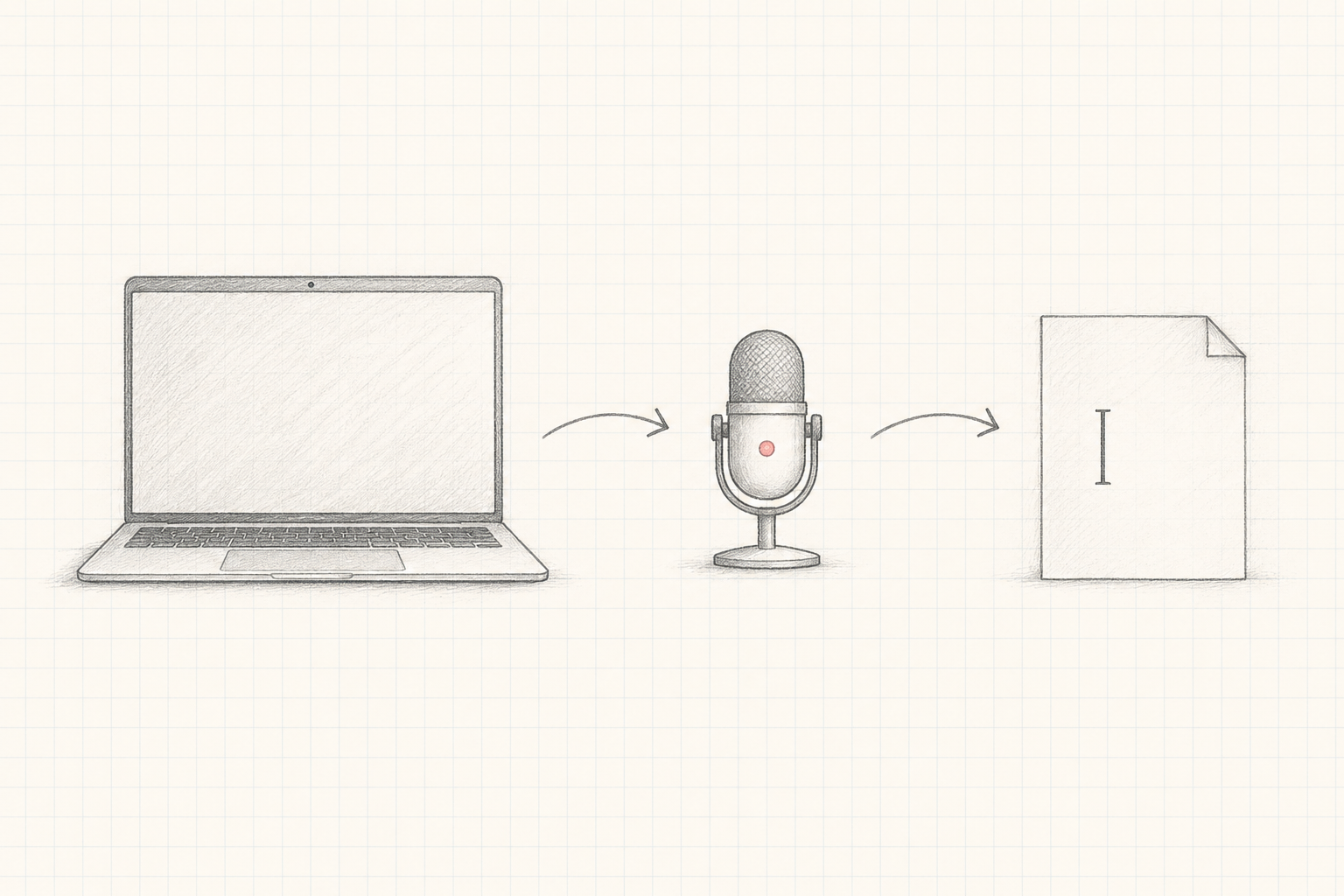
Click an empty text field. Fresh installs use Right Option. Check the shortcut shown inside Tokens, press it, and speak a short sentence. Press it again to finish. Check the inserted text before sending it. Keep your first test free of sensitive information.
4. Keep it small
Click the bubble to move it between bottom, left, top, and right. Typed notes remain separate from your spoken transcript. Optional local-model questions need a separately installed local model.
If something doesn’t work
- No recording: check Microphone and Speech Recognition permissions and your input device.
- Shortcut does nothing: check Input Monitoring and the shortcut shown in Tokens. Quit any second copy.
- Text does not paste: check Accessibility, then click an ordinary editable text field. Review any recovered text before copying it; do not repeat a delivery blindly.
- On-device speech unavailable: this beta stops instead of uploading audio. Your Mac needs the local speech assets for your language.
- macOS blocks opening: this build is signed with Tinkr’s Developer ID and notarized. If macOS still refuses it, download it again, and if that fails, stop and email us.
Email contact@keeptinkr.ing with your macOS version and what happened. Do not send private recordings, transcripts, passwords, or keys.